How Web Browsers Work ? (cookies ,local & session storage)
Useful : 1] Click
Two major issues in web performance are understanding issues related to latency and issues related to the fact that browsers are single threaded.
Latency is our main threat to overcome to ensure a fast load.Network latency is the time it takes to transmit bytes over-the-air to computers.To be fast to load, the developers’ goals include sending requested information as fast as possible, or at least seem super fast.
Web performance can be improved by understanding the single-threaded nature of the browser and minimizing the main thread's responsibilities, where possible and appropriate, to ensure rendering is smooth and responses to interactions are immediate.
The entire process of fetching the website from backend to rendering on the browser consists of the following 5 steps :
- Navigation
- Response
- Parsing
- Rendering
- Interactivity
----------------------------------------------------------------------------------------------------------------
Navigation is the first step in loading a web page. It occurs whenever a user requests a page by entering a URL into the address bar, clicking a link, submitting a form, as well as other actions. One of the goals of web performance is to minimize the amount of time a navigation takes to complete.
DNS Lookup
The first step of navigating to a web page is finding where the assets for that page are located. If you navigate to https://example.com, the HTML page is located on the server with IP address of 93.184.216.34. If you’ve never visited this site, a DNS lookup must happen.
Your browser requests a DNS lookup, which is eventually fielded by a name server, which in turn responds with an IP address. After this initial request, the IP will likely be cached for a time, which speeds up subsequent requests by retrieving the IP address from the cache instead of contacting a name server again.
If your fonts, images, scripts, ads, and metrics all have different hostnames, a DNS lookup will have to be made for each one.

This can be problematic for performance, particularly on mobile networks. When a user is on a mobile network, each DNS lookup has to go from the phone to the cell tower to reach an authoritative DNS server. The distance between a phone, a cell tower, and the name server can add significant latency.
TCP Handshake
Once the IP address is known, the browser sets up a connection to the server via a TCP three-way handshake. This mechanism is designed so that two entities attempting to communicate—in this case the browser and web server—can negotiate the parameters of the network TCP socket connection before transmitting data, often over HTTPS.
TCP's three way handshaking technique is often referred to as "SYN-SYN-ACK",because there are three messages transmitted by TCP to negotiate and start a TCP session between two computers. Yes, this means three more messages back and forth between each server, and the request has yet to be made.
The three messages transmitted by TCP to negotiate and start a TCP session are nicknamed SYN, SYN-ACK, and ACK for SYNchronize, SYNchronize-ACKnowledgement, and ACKnowledge respectively.
The host, generally the browser, sends a TCP SYNchronize packet to the server. The server receives the SYN and sends back a SYNchronize-ACKnowledgement. The host receives the server's SYN-ACK and sends an ACKnowledge. The server receives ACK and the TCP socket connection is established.
TLS Negotiation
For secure connections established over HTTPS, another "handshake" is required. This handshake, or rather the TLS negotiation, determines which cipher will be used to encrypt the communication, verifies the server, and establishes that a secure connection is in place before beginning the actual transfer of data. This requires three more round trips to the server before the request for content is actually sent.

While making the connection secure adds time to the page load, a secure connection is worth the latency.After the 8 round trips to the server, the browser is finally able to make the request.
2] Response
Once we have an established connection to a web server, the browser sends an initial HTTP GET request on behalf of the user, which for websites is most often an HTML file. Once the server receives the request, it will reply with relevant response headers and the contents of the HTML.
This response for this initial request contains the first byte of data received. Time to First Byte (TTFB) is the time between when the user made the request—say by clicking on a link—and the receipt of this first packet of HTML. The first chunk of content is usually 14kb of data.
TCP Slow Start / 14kb rule
The first response packet will be 14Kb. This is part of "TCP slow start", an algorithm which balances the speed of a network connection. TCP slow start is an algorithm used to detect the available bandwidth for packet transmission, and balances the speed of a network connection.
In TCP slow start, after receipt of the initial packet, the server doubles the size of the next packet to around 28Kb. Subsequent packets increase in size until a predetermined threshold is reached, or congestion is experienced.
If you’ve ever heard of the 14Kb rule for initial page load, TCP slow start is the reason why the initial response is 14Kb, and why web performance optimization calls for focusing optimizations with this initial 14Kb response in mind. TCP slow start gradually builds up transmission speeds appropriate for the network's capabilities to avoid congestion.
Congestion control
The server sends data in TCP packets, the user's client then confirms delivery by returning acknowledgements, or ACKs. The connection has a limited capacity depending on hardware and network conditions. If the server sends too many packets too quickly, they will be dropped. Meaning, there will be no acknowledgement.
The server registers this as missing ACKs. Congestion control algorithms use this flow of sent packets and ACKs to determine a send rate.
3] Parsing
Once the browser receives the first chunk of data, it can begin parsing the information received. Parsing is the step the browser takes to turn the data it receives over the network into the DOM and CSSOM, which is used by the renderer to paint a page to the screen.
The browser parses HTML into a DOM tree. When the browser encounters CSS styles, it parses the text into the CSS Object Model (or CSSOM), a data structure it then uses for styling layouts and painting.
Even if the request page's HTML is larger than the initial 14KB packet, the browser will begin parsing and attempting to render an experience based on the data it has. This is why it's important for web performance optimization to include everything the browser needs to start rendering a page, or at least a template of the page - the CSS and HTML needed for the first render -- in the first 14 kilobytes.
Building the DOM tree
HTML parsing involves tokenization and tree construction. HTML tokens include start and end tags, as well as attribute names and values.The <html> element is the first tag and root node of the document tree. The tree reflects the relationships and hierarchies between different tags. Tags nested within other tags are child nodes. The greater the number of DOM nodes, the longer it takes to construct the DOM tree.
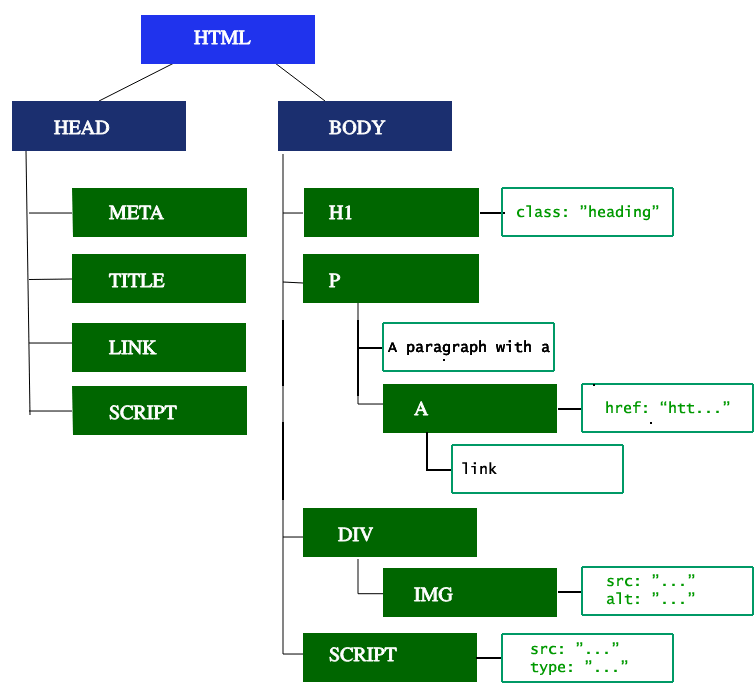
<script> tags—particularly those without an async or defer attribute—block rendering, and pause the parsing of HTML.Preload scanner
While the browser builds the DOM tree, this process occupies the main thread. As this happens, the preload scanner will parse through the content available and request high priority resources like CSS, JavaScript, and web fonts.
Thanks to the preload scanner, we don't have to wait until the parser finds a reference to an external resource to request it. It will retrieve resources in the background so that by the time the main HTML parser reaches requested assets, they may possibly already be in flight, or have been downloaded. The optimizations the preload scanner provides reduce blockages.
<link rel="stylesheet" src="styles.css"/>
<script src="myscript.js" async></script>
<img src="myimage.jpg" alt="image description"/>
<script src="anotherscript.js" async></script>
In this example, while the main thread is parsing the HTML and CSS, the preload scanner will find the scripts and image, and start downloading them as well. To ensure the script doesn't block the process, add the async attribute, or the defer attribute if JavaScript parsing and execution order is important.
Building the CSSOM
The CSS object model is similar to the DOM. The DOM and CSSOM are both trees. They are independent data structures. The browser converts the CSS rules into a map of styles it can understand and work with. The browser goes through each rule set in the CSS, creating a tree of nodes with parent, child, and sibling relationships based on the CSS selectors.
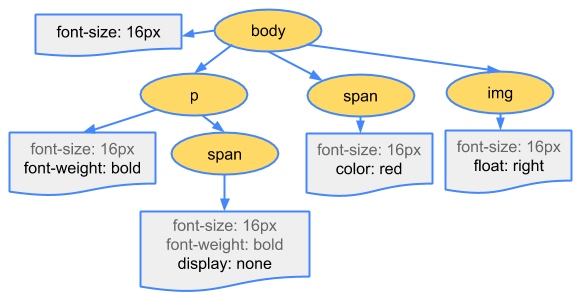
JavaScript Compilation
While the CSS is being parsed and the CSSOM created, other assets, including JavaScript files, are downloading (thanks to the preload scanner). JavaScript is interpreted, compiled, parsed and executed.
The scripts are parsed into abstract syntax trees.Some browser engines take the Abstract Syntax Tree and pass it into an interpreter, outputting bytecode which is executed on the main thread. This is known as JavaScript compilation.
4] Render
Rendering steps include style, layout, paint and, in some cases, compositing. The CSSOM and DOM trees created in the parsing step are combined into a render tree which is then used to compute the layout of every visible element, which is then painted to the screen. In some cases, content can be promoted to their own layers and composited, improving performance by painting portions of the screen on the GPU instead of the CPU, freeing up the main thread.
5] Interactivity
Once the main thread is done painting the page, you would think we would be "all set." That isn't necessarily the case. If the load includes JavaScript, that was correctly deferred, and only executed after the onload event fires, the main thread might be busy, and not available for scrolling, touch, and other interactions.
Time to Interactive (TTI) is the measurement of how long it took from that first request which led to the DNS lookup and SSL connection to when the page is interactive -- interactive being the point in time when the page responds to user interactions within 50ms.
If the main thread is occupied parsing, compiling, and executing JavaScript, it is not available and therefore not able to respond to user interactions in a timely (less than 50ms) fashion.
For example, maybe the image loaded quickly, but perhaps the anotherscript.js file was 2MB and our user's network connection was slow. In this case the user would see the page super quickly, but wouldn't be able to scroll without jank until the script was downloaded, parsed and executed. That is not a good user experience.
------------------------------------------------------------------------------------------------------------------------------
Client Side Storage
Modern web browsers support a number of ways for web sites to store data on the user's computer — with the user's permission — then retrieve it when necessary. This lets you persist data for long-term storage, save sites or documents for offline use, retain user-specific settings for your site, and more.
The 3 most used client-side storages are the following :
- Cookies
- Local Storage
- Session Storage
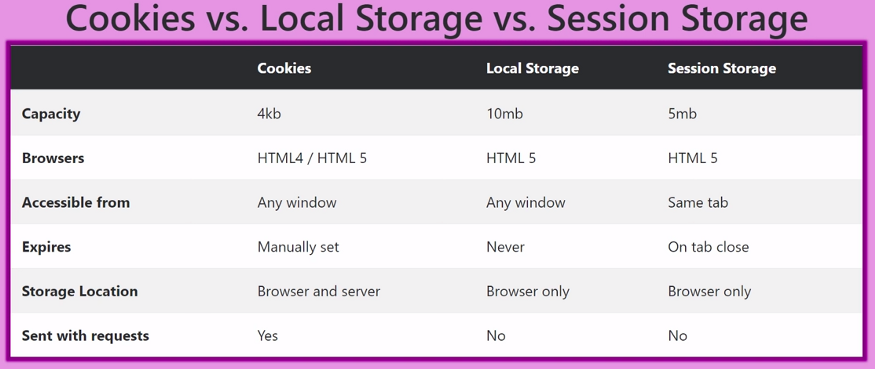
------------------------------------------------------------------------------------------------------------------------------
HTTP Cookies
Cookies or better, HTTP Cookies are text files, stored on the Client Machine. Each cookie can be stored permanently or for a specific expiry time based on the Client Browser’s cookie settings. After the Cookie reaches its expiry date and time, it is automatically removed from the Client Browser.
HTTP is stateless,which means each request to the server is treated independently ,the server does not hold any information on previous requests sent by the client. Since HTTP is a stateless protocol, which means that the server can’t distinguish whether a user is visiting the site for the first time or not. So to solve this problem, sites use cookies.
NOTE : Remember that cookies are meant to be openly read and sent, so you should never store sensitive information like passwords in them.
Typically an HTTP cookie is used to tell if the 2 requests come from the same browser - keeping the user logged in. Cookies are mainly used for 3 purposes :
- Session Management - Login,Shopping carts,anything else the server should remember etc.
- Personalization - User preferences, themes, and other settings.
- Tracking - Recording and analyzing user behaviour.
Cookie Attributes
- Name: Specifies the name of the cookie
- Value: Specifies the value of the cookie
- Secure: Specifies whether or not the cookie should only be transmitted over a secure HTTPS connection. TRUE indicates that the cookie will only be set if a secure connection exists. Default is FALSE
- Domain: Specifies the domain name of the cookie. To make the cookie available on all subdomains of example.com, set the domain to “example.com”. Setting it to www.example.com will make the cookie only available in the www subdomain
- Path: Specifies the server path of the cookie. If set to “/”, the cookie will be available within the entire domain. If set to “/php/”, the cookie will only be available within the php directory and all sub-directories of php. The default value is the current directory that the cookie is being set in
- HTTPOnly: If set to TRUE the cookie will be accessible only through the HTTP protocol (the cookie will not be accessible by scripting languages). This setting can help to reduce identity theft through XSS attacks. Default is FALSE
- Expires: Specifies when the cookie expires. The value: time ()+86400*30, will set the cookie to expire in 30 days. If this parameter is omitted or set to 0, the cookie will expire at the end of the session (when the browser closes). Default is 0
Session Management with Cookies
When a Client visits a particular site for the first time, the client will not have any cookies set by the site. So the server creates a new cookie and sends it to the Client machine itself.
So in the next subsequent visits, the client machine will attach the cookie to the request header and send it. The server then retrieves the cookies from the request object and uses that cookie information to identify the user and maintain the session.
NOTE : If a browser has cookies stored for certain website, then everytime you send a request to that site's server, your cookies are also send inside the HTTP header.
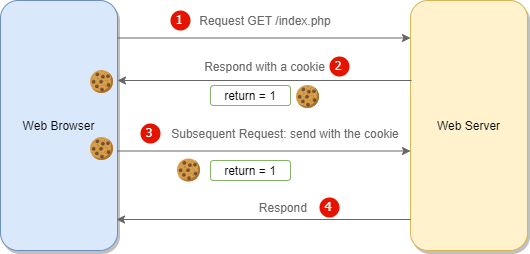
NOTE : Cookies were once used for general client-side storage. While this made sense when they were the only way to store data on the client, modern storage APIs like localStorage & sessionStorage are now recommended. Cookies are sent with every request, so they can worsen performance (especially for mobile data connections).
NOTE : Since cookies are sent with all the requests from the client,the use of cookies should be limited to session management. Things like user preferences or user settings should be done using localStorage API's,this reduces request bandwidth.

How sessions works with cookies ?
When the client makes a login request to the server, the server will create a session and store it on the server-side. When the server responds to the client, it sends a cookie. This cookie will contain the session’s unique id stored on the server, which will now be stored on the client. This cookie will be sent on every request to the server.
We use this session ID and look up the session saved in the database or the session store to maintain a one-to-one match between a session and a cookie. This will make HTTP protocol connections stateful.
Javascript Cookies
JavaScript can create, read, and delete cookies with the document.cookie property.
You can even add expiry date to your cookie so that the particular cookie will be removed from the computer on the specified date. The expiry date should be set in the UTC/GMT format. If you do not set the expiry date, the cookie will be removed when the user closes the browser.
You can also set the domain and path to specify to which domain and to which directories in the specific domain the cookie belongs to. By default, a cookie belongs to the page that sets the cookie.
You can read all the created cookies,document.cookie will return all cookies in one string much like: cookie1=value; cookie2=value; cookie3=value;
Examples
NOTE : Run the code on Local Server,else cookies won't be created.
1] Create a Session Cookie
By default, the cookie is deleted when the browser is closed if you dont specify a expiration date.
2] Create a Persistent Cookie with expiration date
The date should be specified in UTC format. The cookie will automatically get deleted on that date.
3] Delete the cookie
Deleting a cookie is very simple.You don't have to specify a cookie value when you delete a cookie,Just set the expires parameter to a past date.
NOTE : You should define the cookie path to ensure that you delete the right cookie. Some browsers will not let you delete a cookie if you don't specify the path.
4] Read specific Cookie
The document.cookie property looks like a normal text string. But it is not. Even if you write a whole cookie string to document.cookie, when you read it out again, you can only see the name-value pair of it.
If you set a new cookie, older cookies are not overwritten. The new cookie is added to document.cookie, so if you read document.cookie again you will get something like:
If you want to find the value of one specified cookie, you must write a JavaScript function that searches for the cookie value in the cookie string.
A function that returns the value of a specified cookie.Take the cookiename as parameter (cname) and returns the value if cookie found,else returns an empty string.
------------------------------------------------------------------------------------------------------------------------------
Web Storage API
The Web Storage API provides mechanisms by which browsers can store key/value pairs, in a much more intuitive fashion than using cookies.
The two mechanisms within Web Storage are as follows :
sessionStoragemaintains a separate storage area for each given origin that's available for the duration of the page session (as long as the browser is open, including page reloads and restores)- Stores data only for a session, meaning that the data is stored until the browser (or tab) is closed.
- Data is never transferred to the server.
- Storage limit is larger than a cookie (at most 5MB).
localStoragedoes the same thing, but persists even when the browser is closed and reopened.- Stores data with no expiration date, and gets cleared only through JavaScript, or clearing the Browser cache / Locally Stored Data.
- Storage limit is the maximum amongst the two.
Storage Object Properties and Methods
| Property/Method | Description |
|---|---|
| key(n) | Returns the name of the nth key in the storage |
| length | Returns the number of data items stored in the Storage object |
| getItem(keyname) | Returns the value of the specified key name |
| setItem(keyname, value) | Adds that key to the storage, or update that key's value if it already exists |
| removeItem(keyname) | Removes that key from the storage |
| clear() | Empty all key out of the storage |
Examples
NOTE : Run the code on Local Server,else cookies won't be created.
1] Store and Retrieve Data using localStorage
The localStorage object provides access to a local storage for a particular Web Site. It allows you to store, read, add, modify, and delete data items for that domain.
The data is stored with no expiration date, and will not be deleted when the browser is closed. The data will be available for days, weeks, and years.
2] Store and Retrieve Data using sessionStorage
The sessionStorage object is identical to the localStorage object.The difference is that the sessionStorage object stores data for one session. The data is deleted when the browser is closed.
------------------------------------------------------------------------------------------------------------------------------


Comments
Post a Comment