Linux OS Notes
Operating Systems
In the early days of computers the programmers had to write the code on punch cards and then manually insert into the computer to run it. Pretty soon, having humans run around inserting programs into readers was taking longer than running the actual programs, we needed a way for computers to operate themselves, so to reduce the "Idle time" of computers, operating systems were born.
The first operating systems were developed in the 1950s, when computers could only run one program at a time. Later in the following decades, computers began to include more and more software programs, sometimes called libraries, that came together to create the start of today’s operating systems.
The kernel is the essential foundation of a computer's operating system (OS). It is the core that provides basic services for all other parts of the OS. It is the main layer between the OS and underlying hardware, and it helps with tasks such as process and memory management, file systems, device control and networking.

During normal system startup, a computer's basic input/output system, or BIOS, completes a hardware bootstrap or initialization. It then runs a bootloader which loads the kernel from a storage device -- such as a hard drive into a protected memory space. Once the kernel is loaded into computer memory, the BIOS transfers control to the kernel.
It then loads other OS components to complete the system startup and make control available to users through a desktop or other user interface. If the kernel is damaged or cannot load successfully, the computer will be unable to start completely if at all. This will require service to correct hardware damage or restore the operating system kernel to a working version.
One of the main disadvantage of the early operating systems was that there was no single uniform OS that runs on different types of hardwares, each hardware requires it's own specific Operating system. As a result their were many different OS's for different types of hardware. This problem was solved when the UNIX operating system was developed in 1969.
UNIX Operating System (Useful : 1] Click)
UNIX is a powerful Operating System initially developed by Ken Thompson, Dennis Ritchie at AT&T Bell laboratories in 1970. The first version of the Unix operating system was written in programming language C. Initially intended for use inside the Bell System, AT&T commercially licensed Unix to outside parties in late 1970s.
Since UNIX was written in C language and not Assembly, it was able to run on different hardware systems. Until then all commercially available computer systems were written in code specific to that specific hardware system. On the other hand UNIX was able to run on different hardware with minimal changes to it's code,which is now known as the Kernel. This kernel was the only piece of code which needed to be adopted/changed to make the OS compatible to hardware.
The Unix kernel is the central core of the Operating System. Unix easily adapted to the new systems and quickly achieved wide acceptance. Many modern operating systems, including Apple OS X and all different versions of Linux, date back or rely on the Unix OS.
NOTE : Even though UNIX was the first OS to solve this compatibility issue, it was still a commercial operating system and the code was not completely open source.
GNU Project
The term GNU stands for ‘GNU’s and not Unix’. In 1983 Richard Stallman began working on GNU Project, or GNU operating system. The main goal of this project was to create an OS like UNIX (Not Unix itself) which was free and open source. Richard along with other programmers created all the necessary pieces of the operating system like bash shell, text editor etc which were crucial for a full-fledged operating system.
By 1989 the GNU team would have written all the major parts of the GNU operating system, except the "Kernel" which is the heart of the OS. This is when Linus Torvalds, a Finnish college student starts working on creating a new Kernel called "Linux Kernel". The Linux kernel was later combined with the GNU operating system, hence giving birth to the "GNU-Linux" Operating system.
The new GNU-Linux Operating system was using all the parts written by the GNU team in combination with the Kernel created by Linus torvalds. GNU Linux is an Open Source Project and it was derived by following Unix-like architecture. Though it had its origin from the Unix, it is by no way adapting the source code of the predecessor. Also, the GNU Linux is an Open Source and you can use or modify the source code free of cost.
NOTE : The original GNU-Linux operating system is often called as only GNU OS or Linux OS nowadays. It is the root of most Linux distributions created after.
Linux Distributions
Linus Torvalds developed the Linux kernel and distributed its first version, 0.01, in 1991. Linux was initially distributed as source code only, and later as a pair of downloadable floppy disk images: one bootable and containing the Linux kernel itself, and the other with a set of GNU utilities and tools for setting up a file system. Since the installation procedure was complicated, especially in the face of growing amounts of available software, distributions sprang up to simplify it. Also as the code is Open source, people started modifying the original GNU-Linux OS and created their own custom distributions.
Early distributions of the GNU-Linux OS included the following :
- H. J. Lu's "Boot-root", the aforementioned disk image pair with the kernel and the absolute minimal tools to get started (late 1991)
- MCC Interim Linux (February 1992)
- Softlanding Linux System (SLS) which included the X Window System and was the most comprehensive distribution for a short time (1992)
- Yggdrasil Linux/GNU/X, a commercial distribution (December 1992)
Linux is only a kernel. On top of that, you can run a lot of things. The kernel plus the things you run over the kernel is the operating system. A Linux distribution (often abbreviated as distro) is an OS that comprises a Linux kernel, GNU tools and libraries, additional software, documentation, a window system, a window manager, and a desktop environment. Linux distributions optionally include some proprietary software that may not be available in source code form, such as binary blobs required for some device drivers.
Almost one thousand Linux distributions exist. Because of the huge availability of software, distributions have taken a wide variety of forms, including those suitable for use on desktops, servers, laptops, netbooks, mobile phones and tablets, as well as in minimal environments typically for use in embedded systems.

This is how any modern operating system works : you have the kernel dealing with the hardware, and the shell dealing with you, the user, and the applications you launch. So a operating system is Debian, CentOS, Ubuntu, Redhat. All of them use the Linux kernel, so we call them Debian Linux, CentOS Linux, Ubuntu Linux, or RedHat Linux.
---------------------------------------------------------------------------------------------------------------
Linux File System Structure
In Linux, the file system creates a tree structure. All the files are arranged as a tree and its branches. The topmost directory called the root (/) directory. All other directories in Linux can be accessed from the root directory. In Linux, every single entity is considered as file, from terminal commands to user directories.
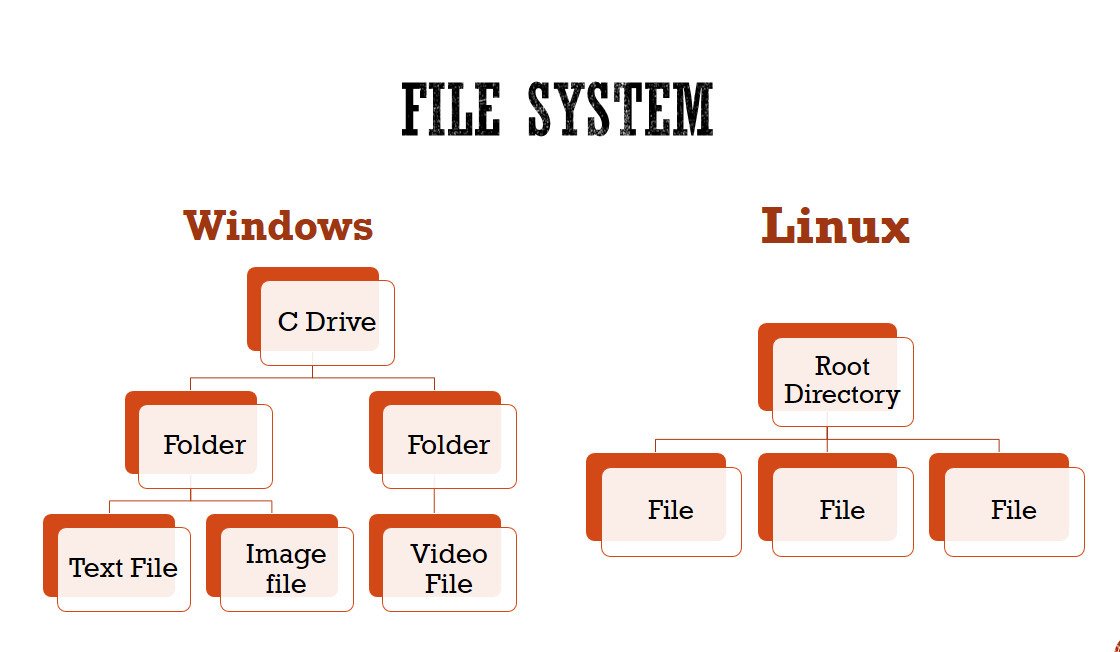
Below are some main file directories to know inside a linux operating system :
- / - Root directory that forms the base of the file system. All files and directories are logically contained inside the root directory regardless of their physical locations.
- /bin - Contains the executable programs that are part of the Linux operating system. Many Linux commands, such as cat, cp, ls, more, and tar, are locate in /bin
- /boot - Contains the Linux kernel and other files needed by LILO and GRUB boot managers.
- /dev - Contains all device files. Linux treats each device as a special file. All such files are located in /dev.
- /etc - Contains most system configuration files and the initialization scripts in /etc/rc.d subdirectory.
- /home - Home directory is the parent to the home directories for users.
- /root - Home directory of the root user.
- /media - Directory for mounting files systems on removable media like DVD-ROM drives, flash drives, and Zip drives.
- /usr - Contains subdirectories for many programs such as the X or GUI Window System.
- /tmp - Temporary directory which can be used to store temporary files which are cleared each time the system boots.
NOTE : The "/" represents root directory whereas "/root" represents root user dir, while all the regular users are inside the "/home" directory.

Some key features of Linux file system are the following :
- Specifying paths : Linux does not use the backslash (\) to separate the components; it uses forward slash (/) as an alternative.
- Partition, Directories, and Drives : Linux does not use drive letters to organize the drive as Windows does. In Linux, we cannot tell whether we are addressing a partition, a network device, or an "ordinary" directory and a Drive.
- Case Sensitivity : Linux file system is case sensitive. It distinguishes between lowercase and uppercase file names. Such as, there is a difference between test.txt and Test.txt in Linux.
- File Extensions : In Linux, a file may have the extension '.txt,' but it is not necessary that a file should have a file extension.
- Hidden files : Linux distinguishes between standard files and hidden files, mostly the configuration files are hidden in Linux OS. The hidden files in Linux are represented by a dot (.) before the file name.
Types of Users (Useful : 1] Click)
Linux is a multi-user operating system, which means that more than one user can use Linux at the same time. Users are accounts that can be used to login into a system. Each user is identified by a unique identification number or UID by the system. All the information of users in a system are stored in /etc/passwd file. The hashed passwords for users are stored in /etc/shadow file.
There are mainly 2 types of users in linux , which are as followed :
1] Super or Root User - The superuser account, called 'root', is virtually omnipotent, with unrestricted access to all commands, files, directories, and resources. Root can also grant and remove any permissions for other users. It has the highest privilege in system. It can do any administrative work and can access any service. It has a UID of 0. By default, the root user is set up during the installation of Linux. This user has all the rights to administer the operating system. The other users initially do not have administrator privileges. The sudo command allows authorized users to run programs with root privileges.
NOTE : The root user account always has the UID value of 0
2] Normal User - Normal users are the users created by the root or another user with sudo privileges. Usually, a normal user has a real login shell and a home directory. Each user has a numeric user ID called UID. During the installation, one normal user is created automatically. After the installation, we can create as many regular user accounts as we need. This account has moderate privilege. This account is intended for routine works. It can perform only the tasks for which it is allowed and can access only those files and services for which it is authorized. As per requirement, it can be disabled or deleted.
---------------------------------------------------------------------------------------------------------------
Linux CLI
The Linux command is a utility of the Linux operating system. All basic and advanced tasks can be done by executing commands. The commands are executed on the Linux terminal. The terminal is a command-line interface to interact with the system, which is similar to the command prompt in the Windows OS. Commands in Linux are case-sensitive.
Linux provides a powerful command-line interface compared to other operating systems such as Windows and MacOS. We can do basic work and advanced work through its terminal. We can do some basic tasks such as creating a file, deleting a file, moving a file, and more. In addition, we can also perform advanced tasks such as administrative tasks (including package installation, user management), networking tasks (ssh connection), security tasks, and many more.
NOTE : In terminal, the default location is the currently logged in user's home directory.
Linux Terminal Commands
The following are common linux terminal commands that every user must know.
1] man - The man is a short term for manual page. It is used to get user manual for particular linux command.
2] ls - It is used to list the files or directories present in the current location.
3] cd - The cd stands for 'change directory'. It is used to change the current working directory.
4] pwd - It stands for 'print working directory'. It displays current working directory.
5] mkdir - It is used to create directories. You can also create multiple or nested.
6] rmdir - It is used to delete empty folders. To delete non-empty folders use the 'rm' command.
7] rm - It is used to delete files and folders. Use the "-R" option to delete non-empty folders.
8] touch - It is used to create empty files. You can also create files without any extensions. This command can be used when the user doesn’t have data to store at the time of file creation.
9] cat - It is also called 'concatenate' command. It can be used to display the content of a file, copy content from one file to another, concatenate the contents of multiple files, display the line number, display $ at the end of the line, etc.
10] cp - The 'cp' means copy. It is used to copy content of a file or directory.
11] mv - mv stands for move. mv is used to move one or more files or directories from one place to another in a file system. It has 2 distinct functions :
i) It can rename a file or folder.
12] grep - It stands for global regular expression print. It is used to search text and strings in a given file that match a specified pattern. Search is case sensitive by default. Use the -i flag to make it insensitive.
13] head, tail - The head command print thr first 10 lines of a file while the tail prints the last 10 lines of a given file.
14] diff - It stands for 'difference'. It is used to compare two files line by line and display the difference between them. This command-line utility lists changes you need to apply to make the files identical.
15] history - Every time we run a command, that's memorized in the history. You can display all using the 'history' command.
16] top - It stands for 'table of processes'. It shows a real-time view of running processes in Linux and displays kernel-managed tasks. The command also provides a system information summary that shows PID, resource utilization, including CPU and memory usage.
You can then also terminate a particular process running on your system using the "Kill" command and specifying the PID of that process.
17] du - It is short for disk usage, is used to display file space usage. The du command can be used to track the files and directories which are consuming excessive amount of space on hard disk drive.
18] wget - wget is a free utility for non-interactive download of files from the web. It supports HTTP, HTTPS, and FTP protocols, and retrieval through HTTP proxies. The simplest way to use wget is to provide it with the location of a file to download over HTTP.
19] neofetch - It is a CLI (command-line interface) tool that displays information about your system like kernel version, shell, and hardware next to an ASCII logo of your Linux distro
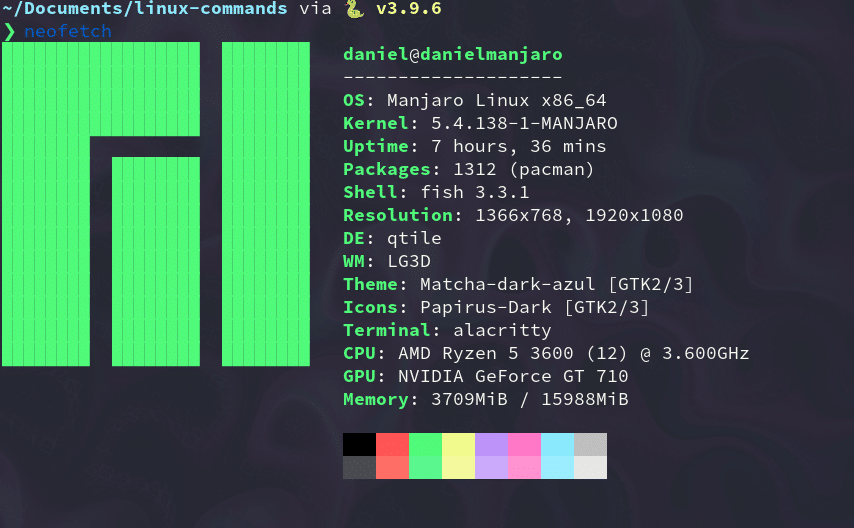
---------------------------------------------------------------------------------------------------------------
SUDO Command
The sudo stands for 'super user do'. It is generally used as a prefix of some command that only superuser are allowed to run. If you prefix “sudo” with any command, it will run that command with elevated privileges or in other words allow a user with proper permissions to execute a command as another user, such as the superuser. This is the equivalent of “run as administrator” option in Windows. This is safer option than performing such tasks as root user.
NOTE : On executing the sudo with particular command, it'll prompt you to enter the root user password.
File Compression Commands
1] gzip - It is a compressing tool, which is used to truncate the file size. By default original file will be replaced by the compressed file ending with extension (.gz)
2] tar - It stands for 'tape archive'. The tar command is used to create an archive, grouping multiple files in a compressed single file with '.tar' extension.
User Management Commands
1] whoami - It prints the user name currently logged in to the terminal session.
2] adduser - It is used to add a new user to your current Linux machine. This command allows you to modify the configurations of the user which is to be created. It creates a directory for new user in /home.
3] deluser - It removes the user account identified by the login parameter without removing the user's home directory by default. The user name must already exist. If the -r flag is specified, the userdel command also removes the user's home directory.
4] su - It stands for 'switch user'. You will be prompted to enter the user password, and if authenticated, the user session is activated.
---------------------------------------------------------------------------------------------------------------
Linux Package Management
A Linux distribution is an operating system made from a software collection that includes the Linux kernel and often a package management system.
Each Linux distribution has its own packager management tool (package manager). Some distro's often share the same package manager. Some popular linux packager managers include apt, yum, pacman, dpkg etc.
In simpler words, a package manager is a tool that allows users to install, remove, upgrade, configure and manage software packages on an operating system. The package manager can be a graphical application like a software center or a command line tool like apt-get or pacman.

Almost all Linux distributions have software repositories which is basically collection of software packages. Yes, there could be more than one repository. The repositories contain software packages of different kind. Repositories also have metadata files that contain information about the packages such as the name of the package, version number, description of package and the repository name etc.
Your system’s package manager first interacts with the metadata. The package manager creates a local cache of metadata on your system. When you run the update option of the package manager (for example "apt update"), it updates this local cache of metadata by referring to metadata from the repository.
When you run the installation command of your package manager (for example apt install package_name), the package manager refers to this cache. If it finds the package information in the cache, it uses the internet connection to connect to the appropriate repository and downloads the package first before installing on your system.
A package may have dependencies. Meaning that it may require other packages to be installed. The package manager often takes care of the dependencies and installs it automatically along with the package you are installing. Similarly, when you remove a package using the package manager, it either automatically removes or informs you that your system has unused packages that can be cleaned.
Package managers are not necessarily command line based. You have graphical package managing tools like Synaptic. Your distribution’s software center is also a package manager even if it runs apt-get or DNF underneath.
Package Management Commands
The file extension for packages in debian based distros (like Ubuntu) is ".deb". Other linux distros like CentOS, RedHat have a package file extension of ".rpm". In order to install a particular software package on linux, we need to download its respective '.deb' or '.rpm' file and then install it. The debian based linux distributions provide 2 main tools to manage software packages :
- dpkg (debian package manager)
- APT (advance package tool)
DPKG commands
The dpkg is the main package management program in Debian and Debian based System. The dpkg stands for debian package manager. It is used to install, build, remove, and manage packages.
When using dpkg to install something you need to first find the software on the internet and download its ".deb" file locally. Once that's done we can use the dpkg tool to install it locally.
NOTE : The dpkg tool can only be used to install the locally available ".deb" files. dpkg on itself cannot retrieve/download files from remote repositories, nor can it figure out dependencies.
Most packages in linux depend on other packages to work properly, so before you install a specific package you would also need to find and install the .deb files for the packages it depends on. All this would have to be done manually, which is very inefficient, so another tool was introduced on top of dpkg tool, called "APT".
APT commands
APT stands for "Advance Package Tool". With dpkg, you can only install local files you've already downloaded yourself. It can't search remote repositories or pull packages from them. With APT, you can retrieve a file from a remote repository and install it, all in one command. This saves you from the work of manually finding and downloading the package before installation.
When APT (or Apt-get) installs a package, it's actually using dpkg on the back-end to accomplish that. In that way, dpkg acts more as an "under the hood" tool for APT's more user-friendly interface.
The "apt update" is probably the first command you run before installing any package using APT in linux. It'll pull the list of all the available packages from the remote repositories and update the local index.
To upgrade the already installed local packages to their latest versions run :
To install a package from remote repository run the following package :
To install local deb files provide the full path to file. Otherwise, the command will try to retrieve and install the package from the APT repositories.
To remove or uninstall packages from the system, run the following command :
NOTE : The dpkg is the low-level background application. The apt-get command is a full-featured but simplified interface to dpkg, and apt is a more user-friendly but slightly stripped-back version of apt-get.


Comments
Post a Comment